Change billing info
Please check out the answers below if you need to change your billing information or find your previous payments and invoices.
You can change your credit card information if you have an active recurring subscription.

To make these changes, go to the Subscription info in My Profile settings, the Billing info tab.
Click the edit button in the Current Card box and add new card details.
Then, $1 or its equivalent will be debited from the card. This is a common practice that helps ensure that the payment information is correct. The authorization transaction is not a charge, and, eventually, it will lapse from your statement. In most cases, it is reversed almost immediately, but depending on your bank's internal policies, it can take up to several weeks.
If you want to update your other billing information, click Edit next to Billing information.


All future payments, including pending or recurring charges, will be automatically updated with the new card information and seamlessly processed.
We may automatically refresh your card information if your card provider notifies us about any changes to your payment details. This guarantees that your payment will not fail and that you will not have to remember to update your card information manually. All your data is encrypted and secured.
If you prefer not to have your card information automatically updated, you can opt out by contacting your card provider directly.
Your payment card details are automatically deleted from our system two years after the last successful payment on the platform. This retention period complies with the PCI DSS Standard.
If you need your card details deleted immediately, you cannot delete or remove the card directly through the interface. This can only be done by the Customer Support team.
Please reach out to our Support team, providing confirmation of residency and a reason for the change. Confirmation of residency can include one of the following:
- Government-issued photo ID
- Company registration certificate
- Residential lease/property deed
- Utility bill
- Letter from the government/court (eg. marriage/divorce certificate, government aid)
- Bank statement
- Driver's license/learner's permit
- Car registration
- Notarized affidavit of residency
- Valid VAT/ABN
Semrush accepts the following forms of payment:
- Visa
- Mastercard
- Discover
- American Express
- Check orders are available for annual subscriptions in the US only. Eligibility depends on account value, so this option is limited. Please contact the Customer Support Team to confirm availability
- Wire transfers are available worldwide for annual subscriptions only. Eligibility depends on account value, so this option is limited. Please contact the Customer Support Team to confirm availability
Since December 2023, if you’re located in Brazil, Semrush requires a valid CPF (Cadastro de Pessoas Físicas) or CNPJ (Cadastro Nacional da Pessoa Jurídica) to process your payments.
Go to your Profile - Subscription info - Billing info, and click Edit:
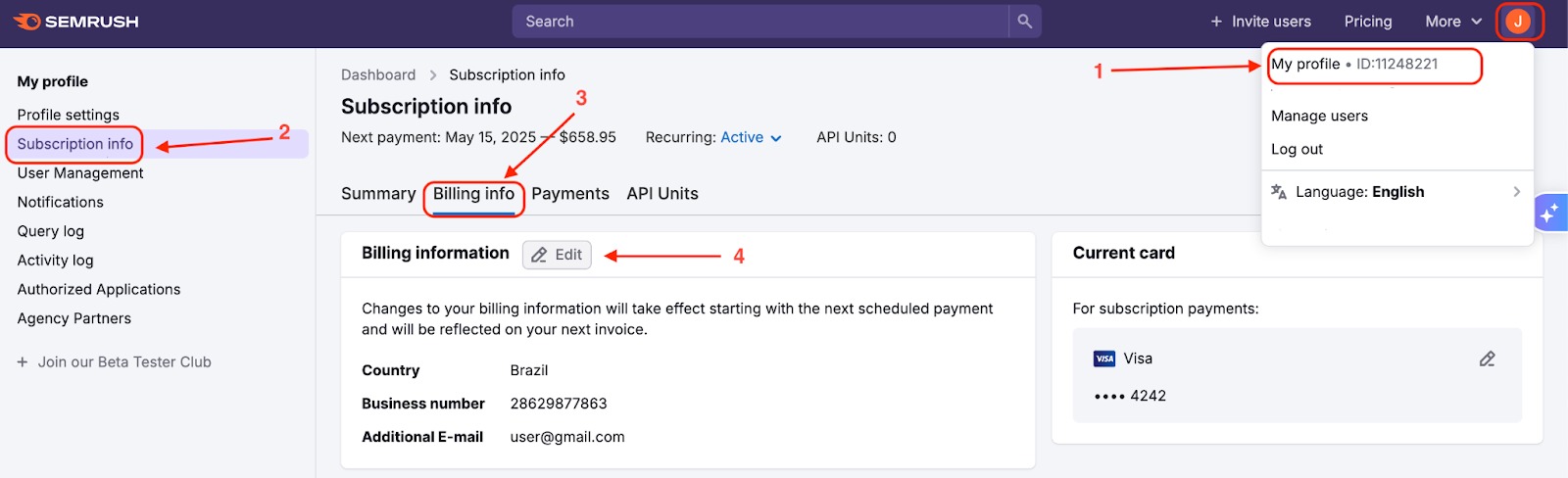
In the Billing information pop-up window, fill in the mandatory Business number field:

CPF number format: 11 digits
Format Example: 000.111.222-33 or 00011122233
CNPJ number format: 14 digits
Format Example: 12.345.678/0001-90 or 12345678000190
Billing issues
The answers below will help you to resolve possible issues with your payments.
You can change the bank card associated with your account only if you have an active recurring subscription.
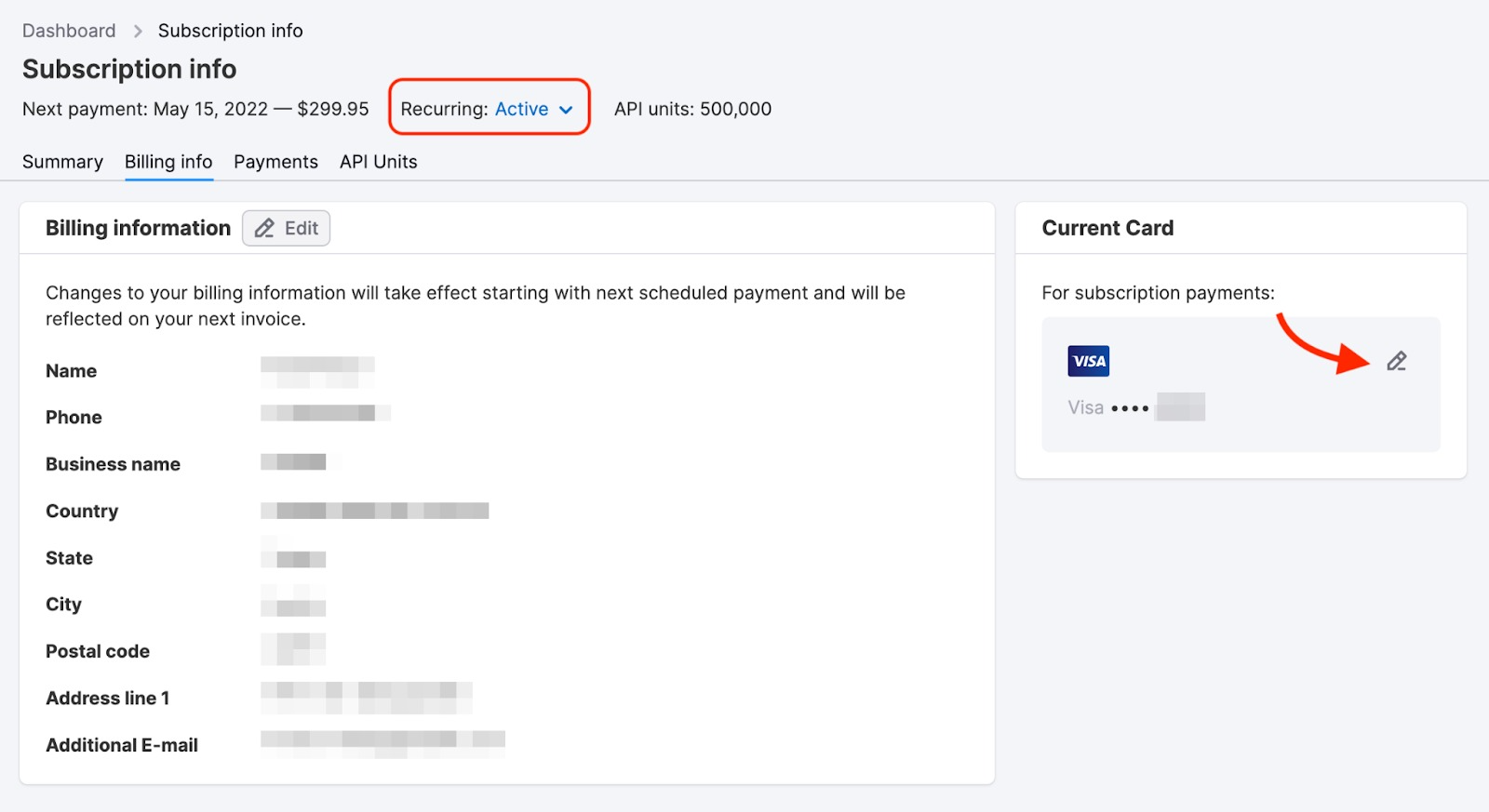
The most common reason why you can’t edit billing information is that your recurring subscription is inactive. As a result, the button for editing bank card information on the Billing Info page will not be available.
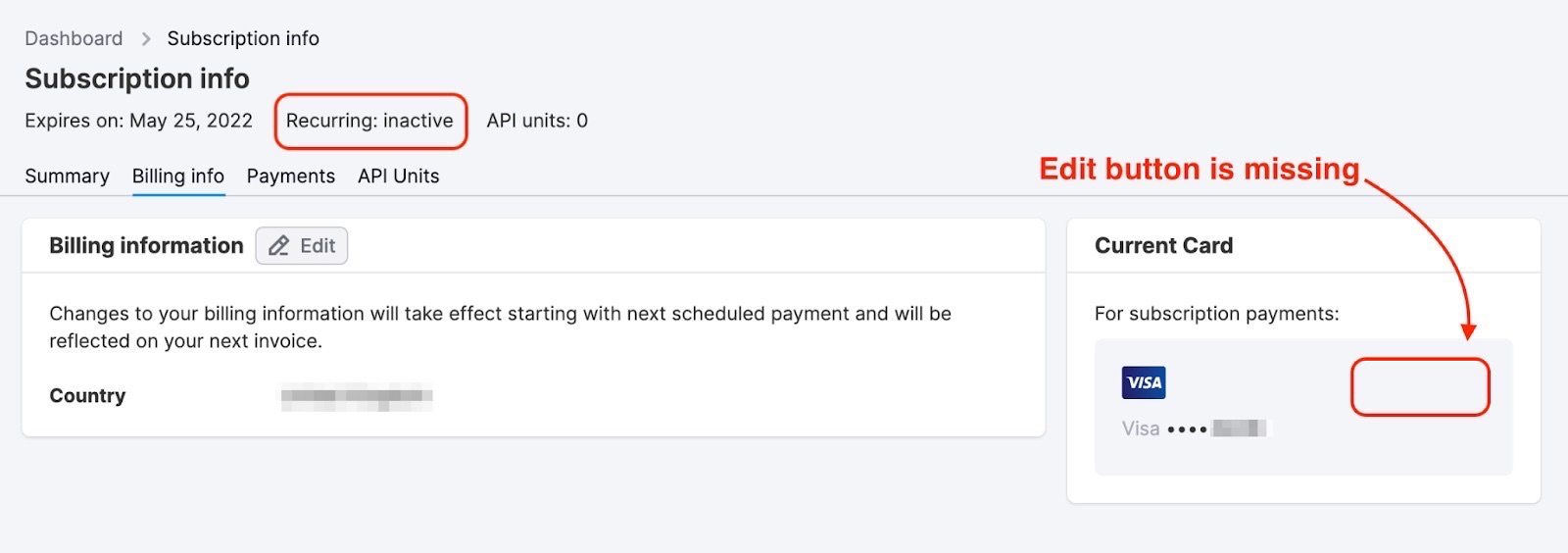
In this case, you need to log in to your account, go to our prices page, and re-subscribe to your plan with an updated card and billing information.
A card that you use to pay for API units, while displayed in your Billing info, is in read-only mode and cannot be edited. To change this card, reach out to our Customer Support team.
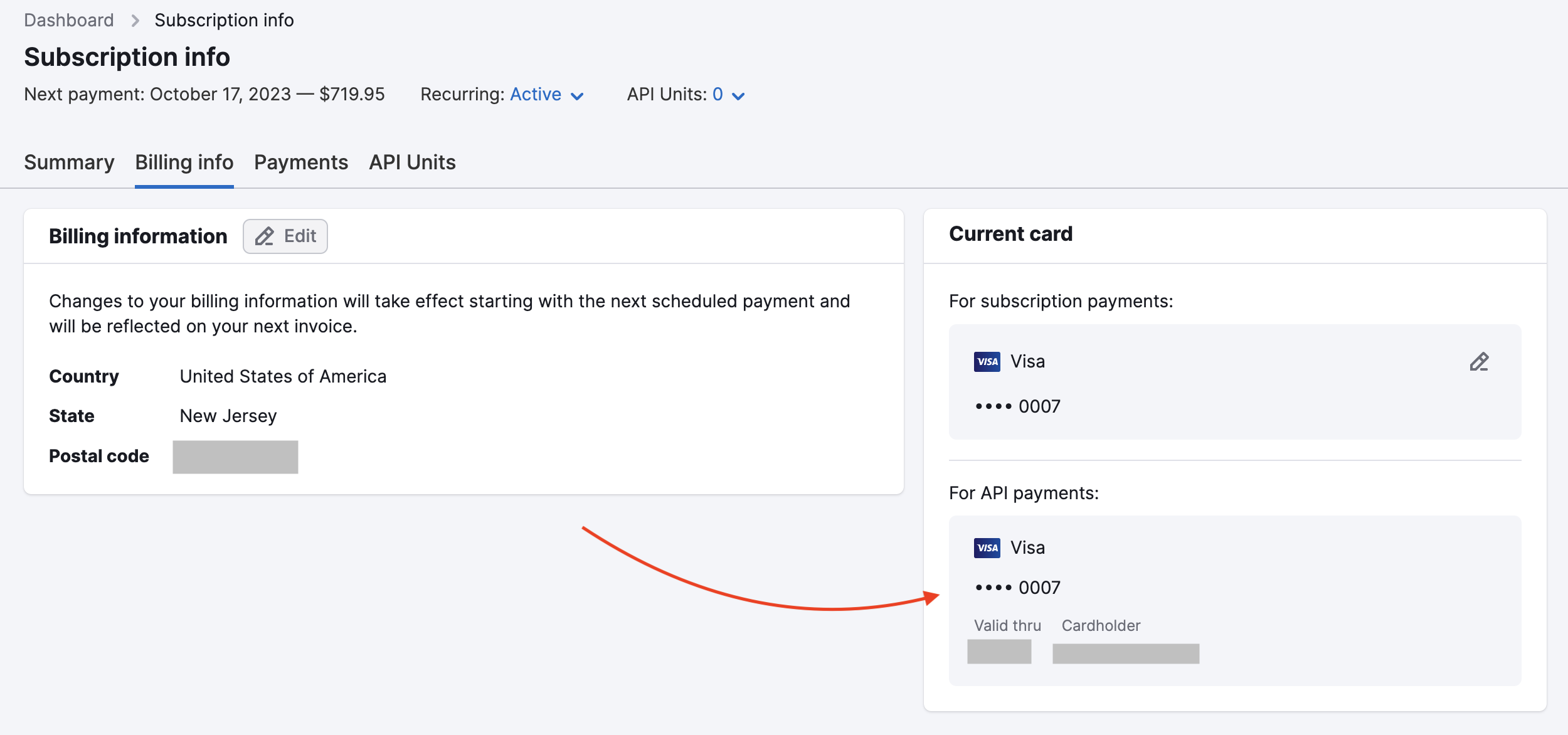
If you are still having issues editing your billing information, please contact our Customer Support team.
Why did your transaction fail? The main reasons we see include:
-
Your card has insufficient funds
-
Your card may not permit online payments or international transactions
-
Your bank is rejecting the payment
To fix this, we recommend:
-
Topping up your balance or contacting your bank to ask for a credit limit increase
-
Contacting your bank to find out the reason for the decline
There will be several attempts from our side to make the transaction, so if the issue is resolved with your bank, the transaction will be processed automatically in a week.
If your subscription status is currently pending due to a failed payment, you can immediately renew your subscription without waiting for the next automatic attempt:
- 1-Click Payment: A renewal notice is displayed on the Subscription Info page. Click the "Renew now" button in this notice to instantly charge your subscription with your current saved card.

- Use a New Card: You can also resolve a pending subscription by updating your card information on the Subscription Info page and using the new card to make a self-payment. You can change your bank card information only if your subscription is still recurring.

You can change your bank card information only if your subscription is still recurring.
If you need personal assistance with the failed transaction, you can always reach out to our Support team, and a team member will be happy to help you.
If you see a notification “Sorry, the credit card you entered cannot be used for this payment. Please provide a different card” this could be because you’re trying to pay with a virtual card, and we don’t accept such a payment method (you can pay using all major physical credit cards, including Visa, Mastercard, Discover, American Express, and UnionPay).
In this case, try using a different card.
If this is not the case, feel free to Contact our Sales team via this form, they will be happy to assist.
Please kindly note that you can use the option to get a free trial only once. All the following attempts will lead to the purchase of a monthly plan, and you will be charged accordingly.
Please do not worry—the authorization transaction is not a charge, and, eventually, it will disappear from your statement. In most cases, it is reversed almost immediately, but depending on your bank's internal policies, it can take up to several weeks.
The message "Credit card linked to your account will expire soon. Your account may be downgraded, and you may lose your project data" appears when a card linked to your Semrush account is approaching its expiration date. Because Semrush cannot charge an expired card, your next subscription payment may fail unless you update the card details.
If the payment fails, your subscription may become inactive, and your account may be downgraded. SEO Website monitoring data stored by Semrush may be deleted if the subscription is not reactivated within 30 days.
After you update the card, the message disappears automatically, although the interface may take some time to reflect the change.
If the card used for your subscription is not expiring, but you still see the message, check any card linked to API-related payments.
Manage subscription
If you would like to modify your subscription, cancel it or get a refund, please refer to the answers below.
You can view your current subscription and account limits on the Summary tab of the Subscription Info page.
- The Toolkits & Units section lists the available toolkits. A dot next to a toolkit means that it has been purchased and is included in your current subscription. Select a purchased toolkit to view your subscription plan and the limits included.
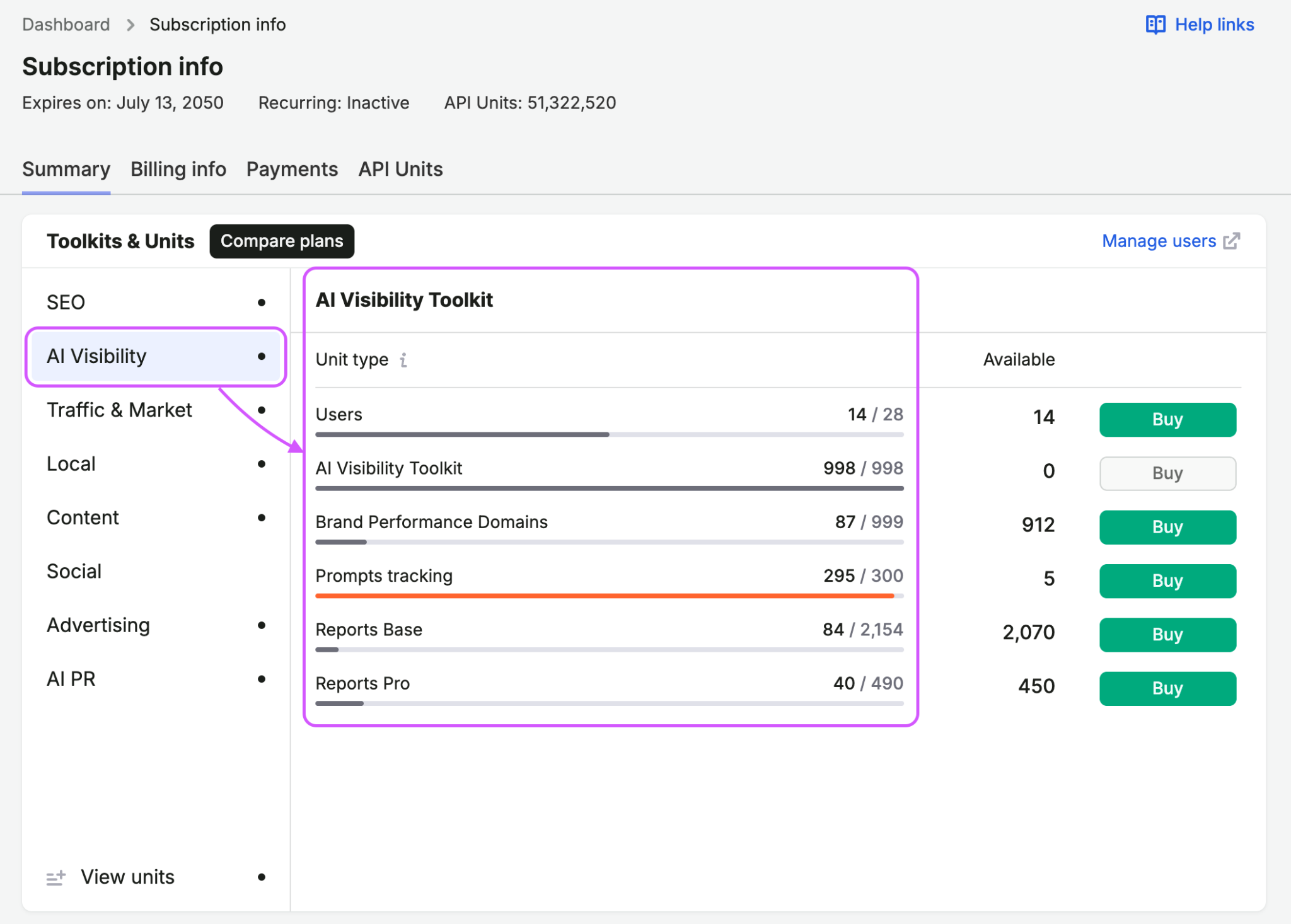
- Select View units to see the limits across all your purchased toolkits

- Select Compare plans at the top of the Toolkits & Units section to compare the features, limits, and prices of available plans for each toolkit. You can switch between monthly and annual billing and subscribe to a different plan from the comparison window.
- Separate sections below Toolkits & Units show your API unit balance and purchased App Center apps, if applicable
Note: If your payment method is not a credit card, clicking the “Buy” button will prompt your Account Manager to contact you via email. If you need to purchase additional limits urgently, please call your Account Manager directly; they will be happy to help you over the phone.
You can view your payment history on the Payments tab of the Subscription Info page.
The payment history table shows the following details for each transaction:
- Sale ID and payment date
- Purchased product
- Transaction amount and any included taxes
- Payment status, such as successful, refunded, or failed
- Payment method
To download an invoice as a PDF, select the invoice icon in the far-right column of the corresponding transaction.

You can also have future invoices sent automatically to an additional email address. Select the pencil icon above the payment history table, enter the email address, and save your changes.
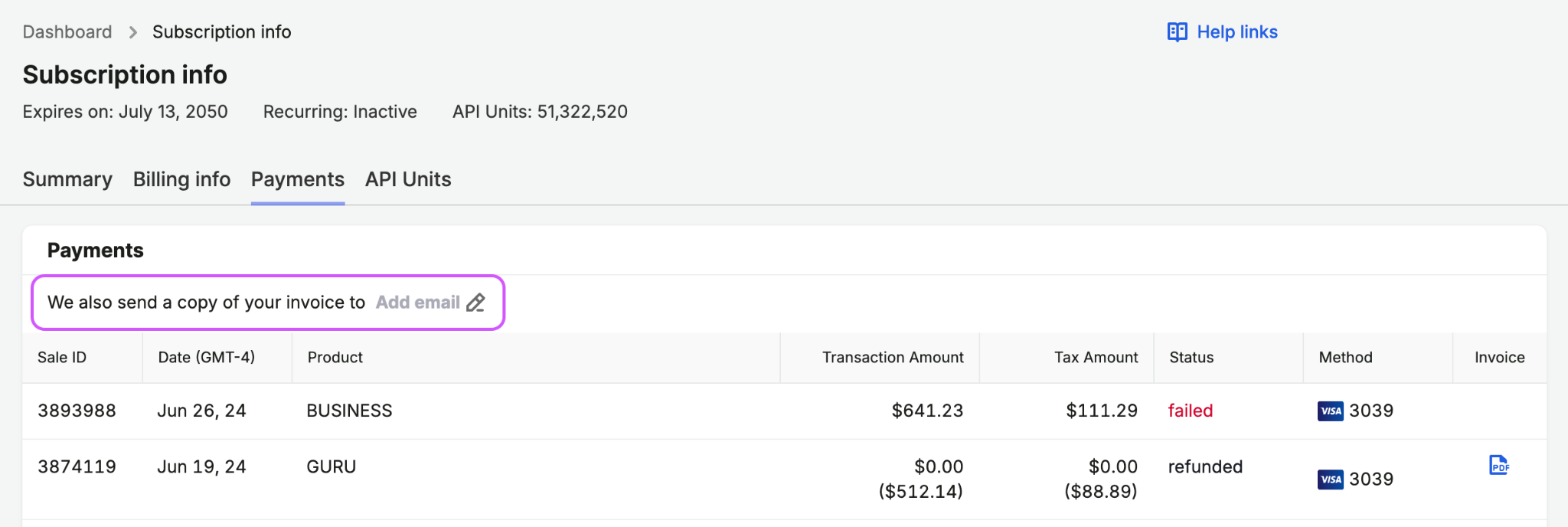
All purchases are listed on the Payments tab of the Subscription Info page.
When you add a product during a monthly billing cycle, the initial charge is typically prorated for the period between the purchase date and your next subscription renewal date. At your next subscription renewal, the product’s full recurring price is included in the total renewal charge.
For example, if your subscription renews on the 16th of each month and you add a product on the 10th, you are initially charged only for the period from the 10th until the 16th of that month. On that renewal date, the product’s full monthly recurring price is included in your total subscription renewal charge.
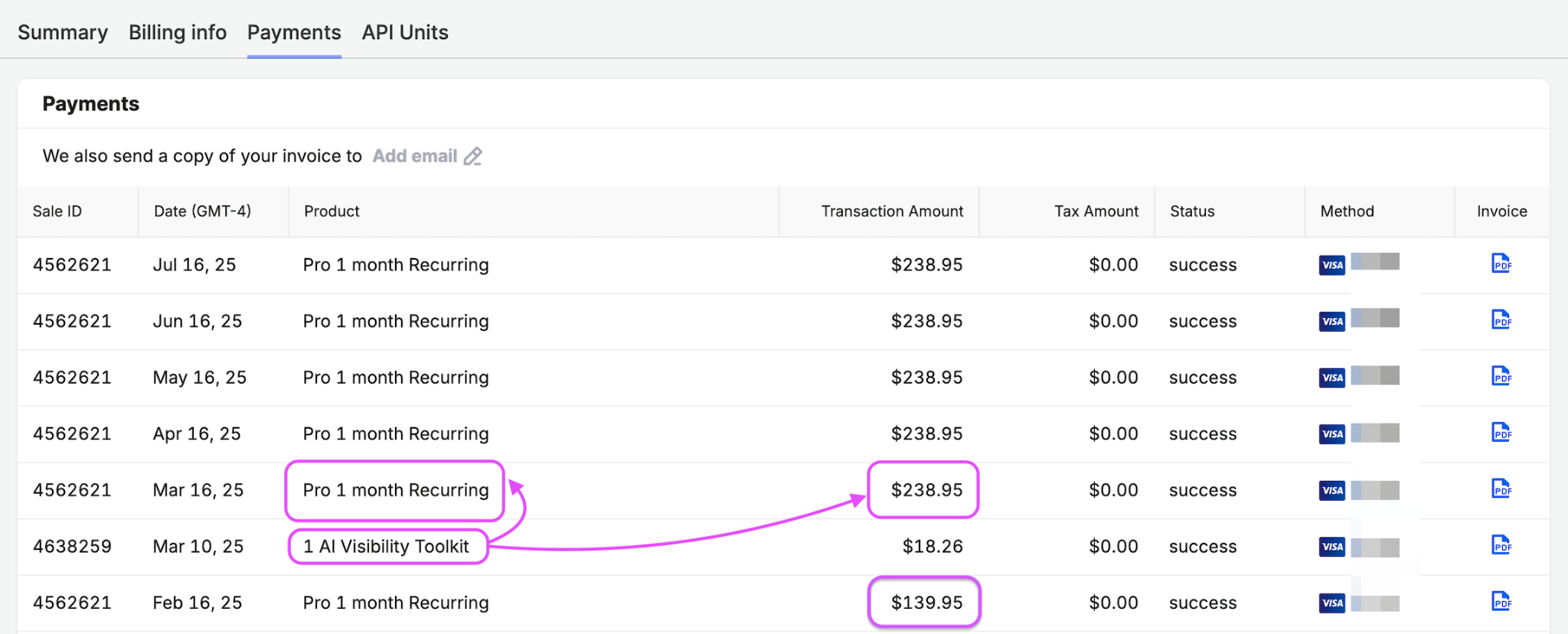
After the first charge, the added product is no longer displayed as a separate transaction. The Product column for subsequent renewal charges continues to show only the name of your original subscription, even though the total amount includes the recurring prices of other products added to it.
To identify products added recently, review earlier purchases in the Product column. Each product typically appears as a separate purchase when it is first added.
Note: For annual subscriptions, any additional products are aligned with the existing annual billing cycle. You pay a one-time prorated amount for the remaining subscription term, and all added products share the same renewal and expiration date as the original annual subscription. They are not billed monthly.
Some subscription limits refresh on your renewal day rather than on the first day of each calendar month.
You can find your renewal date at the top of the Subscription Info page. The Next payment date shows the next renewal date for an active recurring subscription.
For monthly subscriptions, applicable limits refresh on the displayed renewal date. For annual subscriptions, they refresh each month on the same day of the month that the subscription was originally purchased.
For example, if you purchased an annual subscription on August 14, its monthly limits refresh on the 14th of every month.
The billing frequency for tools depends on your current subscription billing cycle.
If you’re on a monthly billing cycle, your tools are billed monthly. If you’re on an annual billing cycle, your tools are billed annually and align with your existing annual subscription term.
There are currently two ways you can change your subscription plan from monthly to annual.
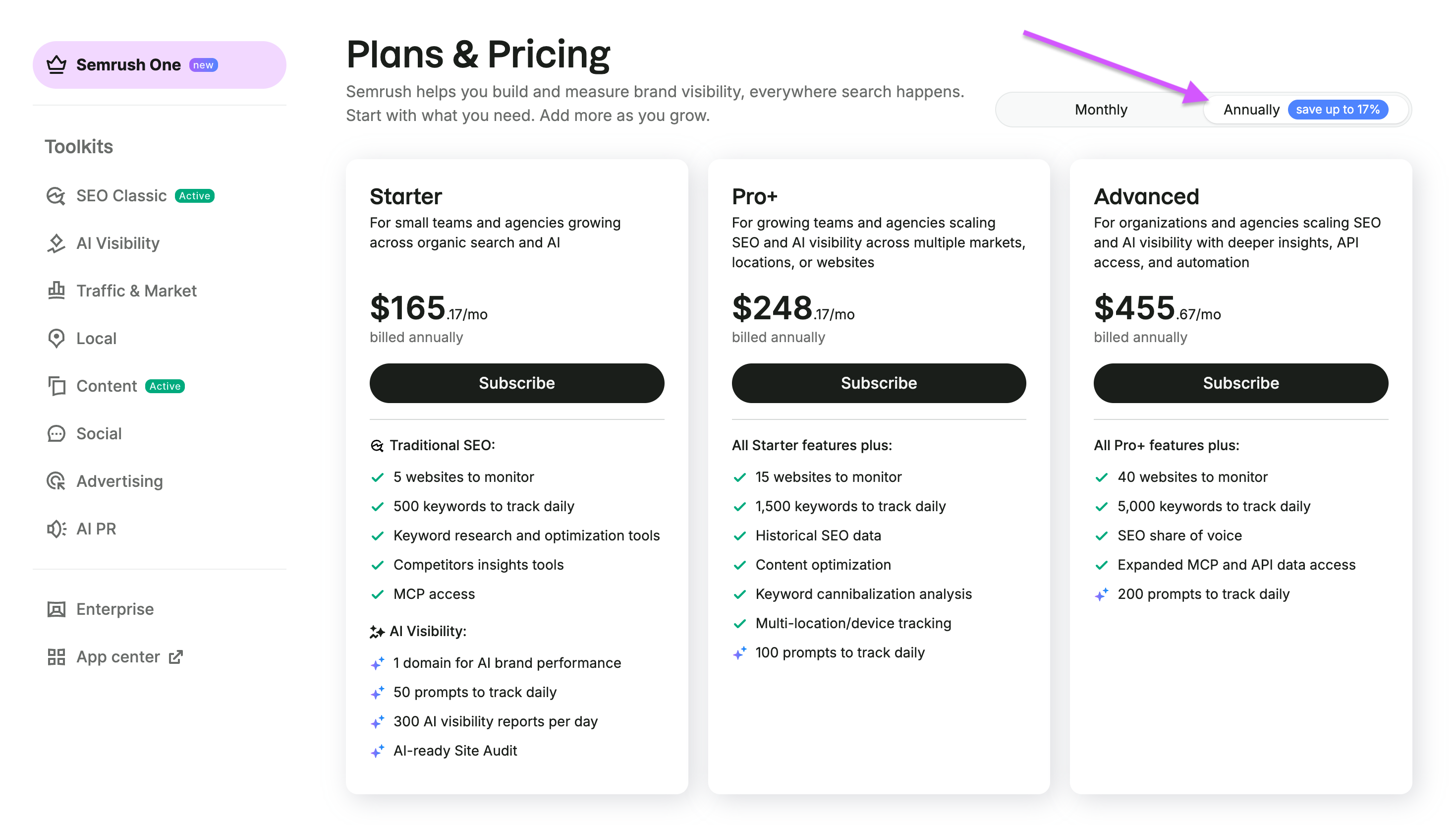
1. From the Prices Page
The first, and probably easiest, is to simply navigate to our Prices page. Click on the “Annually” button in the top right corner. Switching to an annual plan can not only be more convenient for your needs but also more cost-effective. For example, by paying annually, you can save around 17% on Semrush One or the SEO Toolkit.
2. Through our Sales team
The second way to switch from a monthly plan to an annual plan is to contact one of our sales representatives via the Contact Sales form. From here, your representative will help assist you in switching over your payment plan in a matter of minutes.
All purchases are tied to your current billing cycle and align with your annual subscription term.
For annual subscriptions:
- Any additional limits, apps, toolkits, or add-ons are applied to the same annual cycle.
- You pay a one-time upfront amount calculated for the remaining time in your annual subscription (prorated).
- All items expire at the end of the annual billing cycle, regardless of when they were added.
Example:
If you have an annual SEO Toolkit (SEO Classic) subscription running from January 1 to December 31 and decide to add the AI Visibility Toolkit on July 1, you will be charged a one-time prorated amount covering the remaining six months of your annual term (July–December). The AI Visibility Toolkit will share the same renewal and expiration date as your annual subscription and will not be billed monthly.
Yes, you can switch from an annual to a monthly subscription.
- If the cost of the new monthly subscription is higher than the value of the unused period in your annual subscription, a prorated discount is applied automatically. You can make the change directly from the Plans and Pricing page.
- If the cost of the new monthly subscription is lower than the value of the unused period, contact the Customer Support team for assistance.
To switch from a corporate subscription to an individual subscription, purchase your own plan through the Plans & Pricing page. Once the purchase is complete, your account will automatically detach from the corporate account, and your projects will remain in your account.
If you’re unsure which plan is right for you, contact our Sales team for assistance.
If you upgrade to a higher-tier plan before your current subscription period ends, you will not simply be charged the difference between the plans’ standard prices.
Instead, Semrush applies a prorated discount based on the unused time remaining on your current subscription. The upgrade charge is calculated based on the exact time remaining in your current billing cycle, so the value of the unused portion of your existing plan is credited toward the new plan.
To check the exact amount you will be charged:
- Go to the Plans and Pricing page
- Find the plan you want and select Upgrade now
- Review the Change your subscription plan window
- Check Today’s charge to see the exact prorated amount due for the upgrade
To cancel your plan, you need to send a request to our Support team, and the team will process your request.
It is not possible to pause your subscription. Subscriptions can only be canceled.
After canceling your subscription or trial, you will still be able to access Semrush on a free-level account.
All Website Monitoring folders created under a paid plan limit will be locked but still displayed in the Folders list on the home page. There is a 30-day grace period during which we will save your Website Monitoring data, provided the subscription is renewed within 30 days of cancellation.
If you don’t restore your paid SEO Toolkit subscription within 30 days, all your Website Monitoring data will be deleted in accordance with your free plan limits, which means only the data in your oldest folder will be retained.